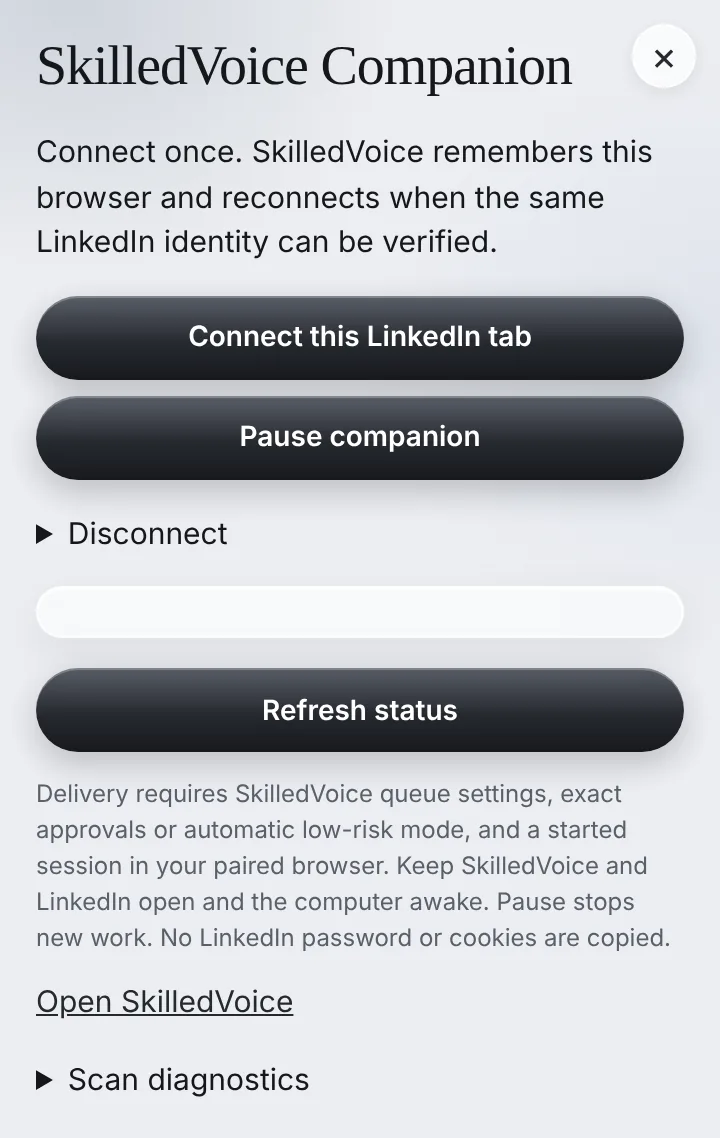
LinkedIn work happens in your own browser, signed in as you, at a human pace. The SkilledVoice Companion is the small extension that does that work in a LinkedIn tab you choose. It never reads your passwords or cookies.
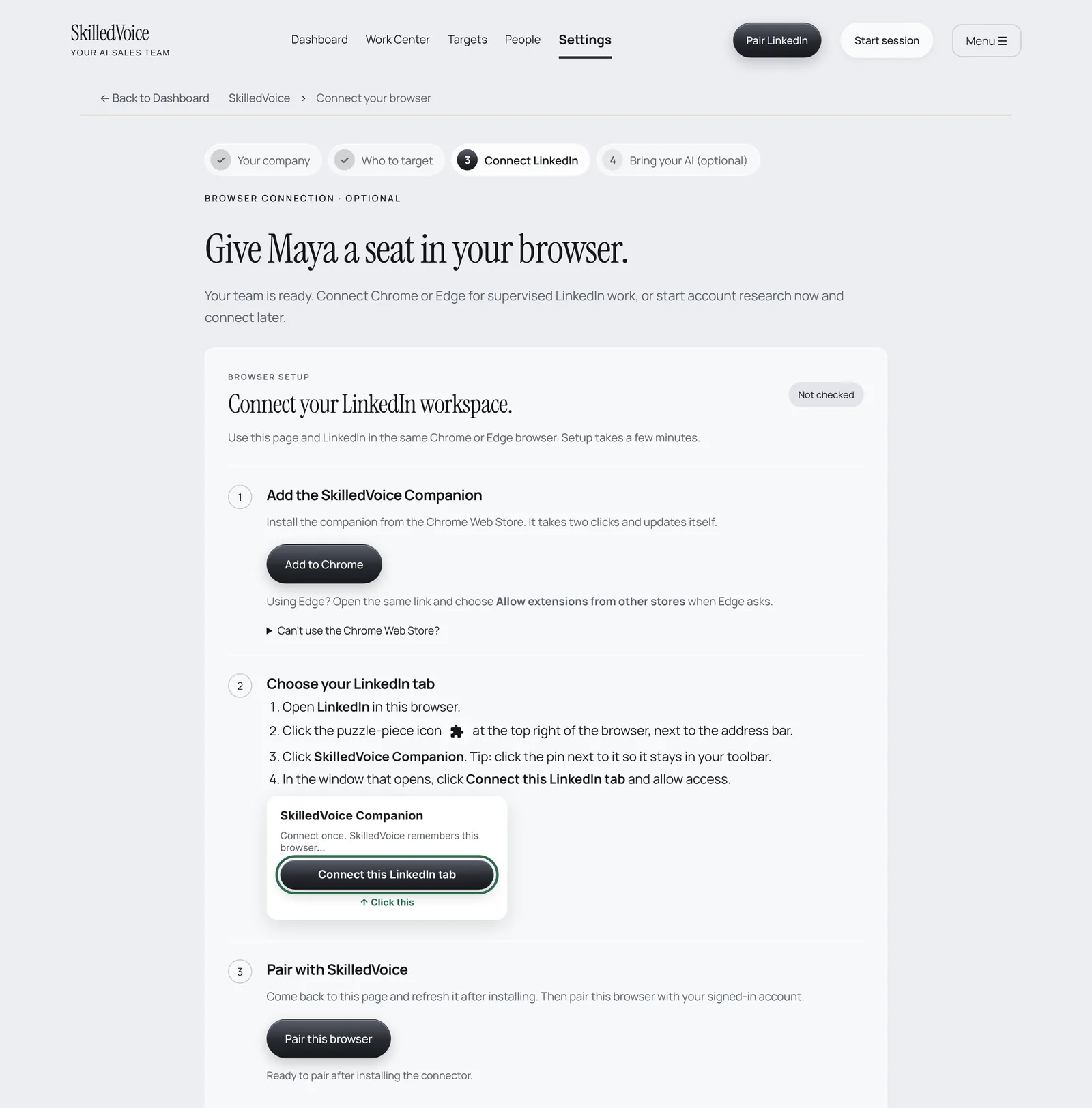
1. Add the companion
- In SkilledVoice, open Settings → LinkedIn connection (or click Pair LinkedIn at the top of any page).
- Click Add to Chrome. This opens the SkilledVoice Companion in the Chrome Web Store; click Add to Chrome there too.
- Using Microsoft Edge? Open the same link and choose Allow extensions from other stores when Edge asks, then Get.
- Pin it: click the puzzle-piece icon next to the address bar, then the pin beside SkilledVoice Companion, so it stays in your toolbar.
2. Connect your LinkedIn tab
- Open LinkedIn in the same browser and make sure you are signed in.
- Click the SkilledVoice Companion icon in your toolbar.
- Click Connect this LinkedIn tab and allow access when the browser asks.
3. Pair with SkilledVoice
- Go back to your SkilledVoice tab and refresh the page.
- Click Pair this browser (or Pair LinkedIn in the header).
- The header now says Paired. You are ready to start a session.


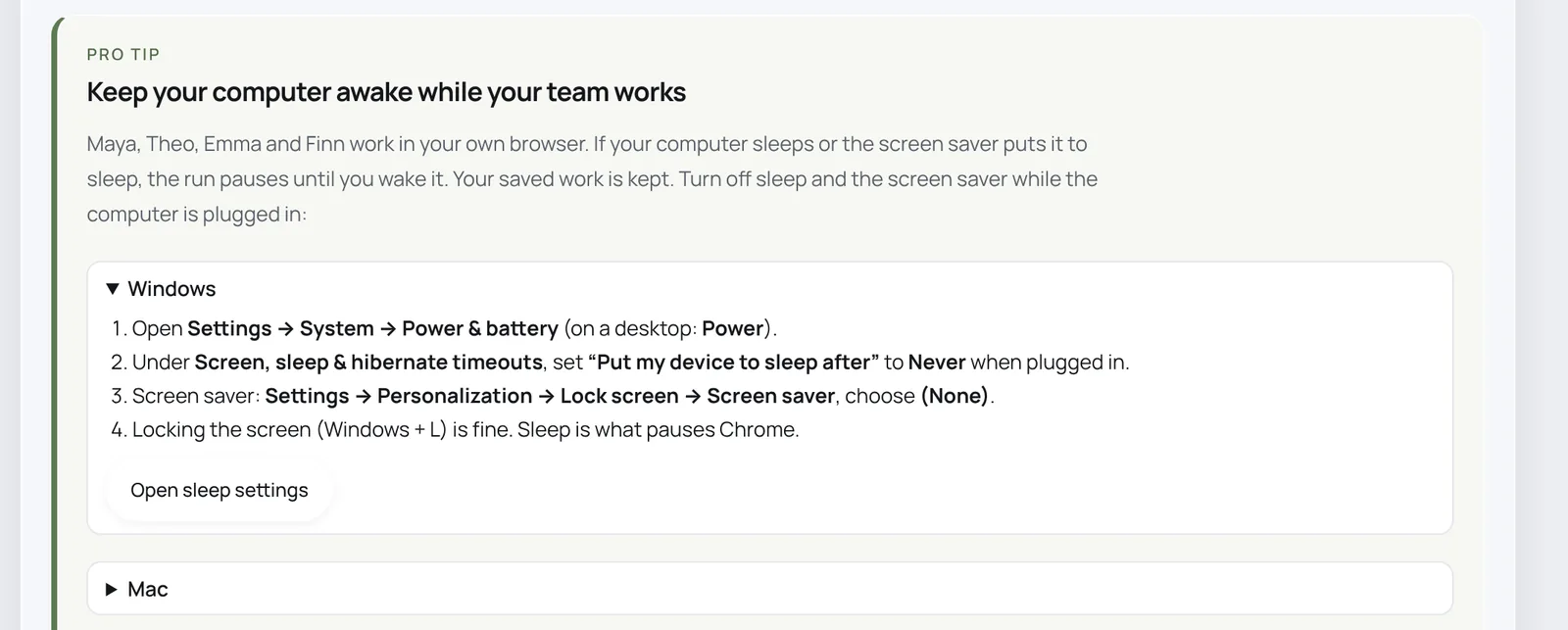
Keep your computer awake
Maya, Theo, Emma and Finn work in your browser. If the computer sleeps or the screen saver puts it to sleep, the run pauses until you wake it. Your saved work is kept, but nothing new happens.
Using more than one computer
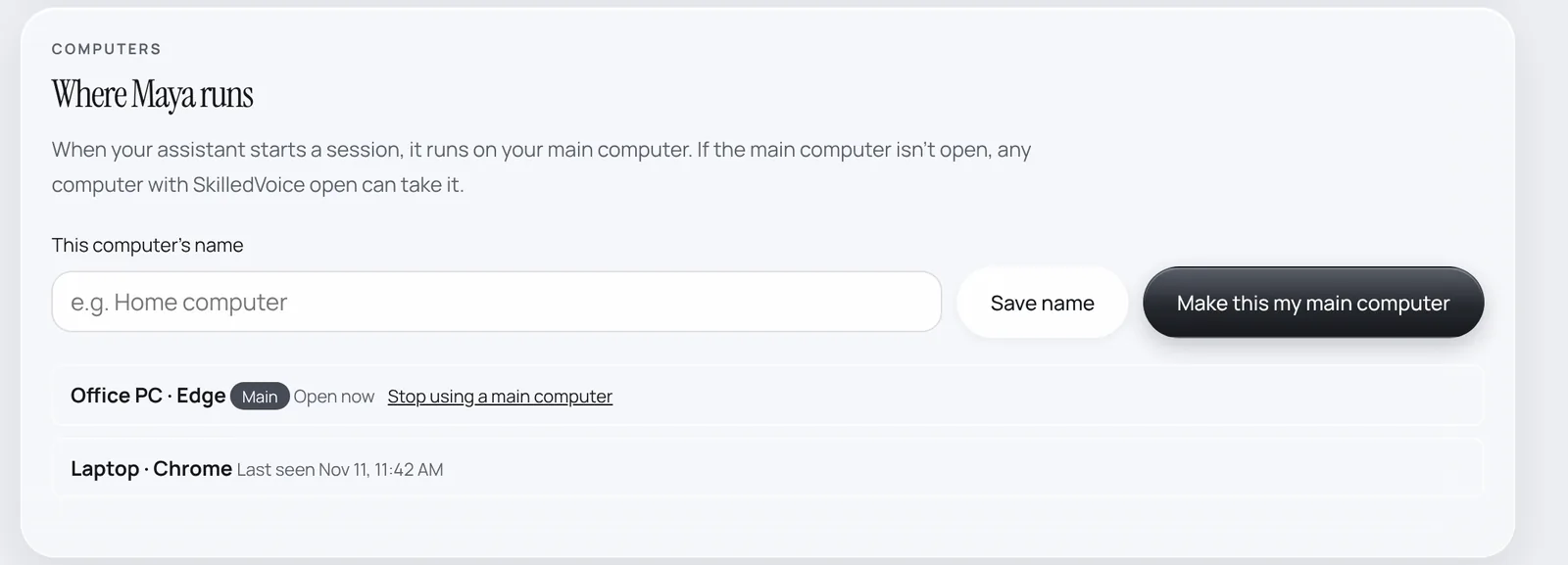
You can pair SkilledVoice on several computers. Give each one a name in Settings → Where Maya runs and mark the always-on one as your main computer. When your AI starts a session, it runs on the main computer; if that one isn’t open, any computer with SkilledVoice open can take it.
Keeping the companion up to date
The Chrome Web Store version updates itself. If SkilledVoice ever says your companion is out of date, open chrome://extensions (or edge://extensions), switch on Developer mode, click Update, then refresh your LinkedIn and SkilledVoice tabs.