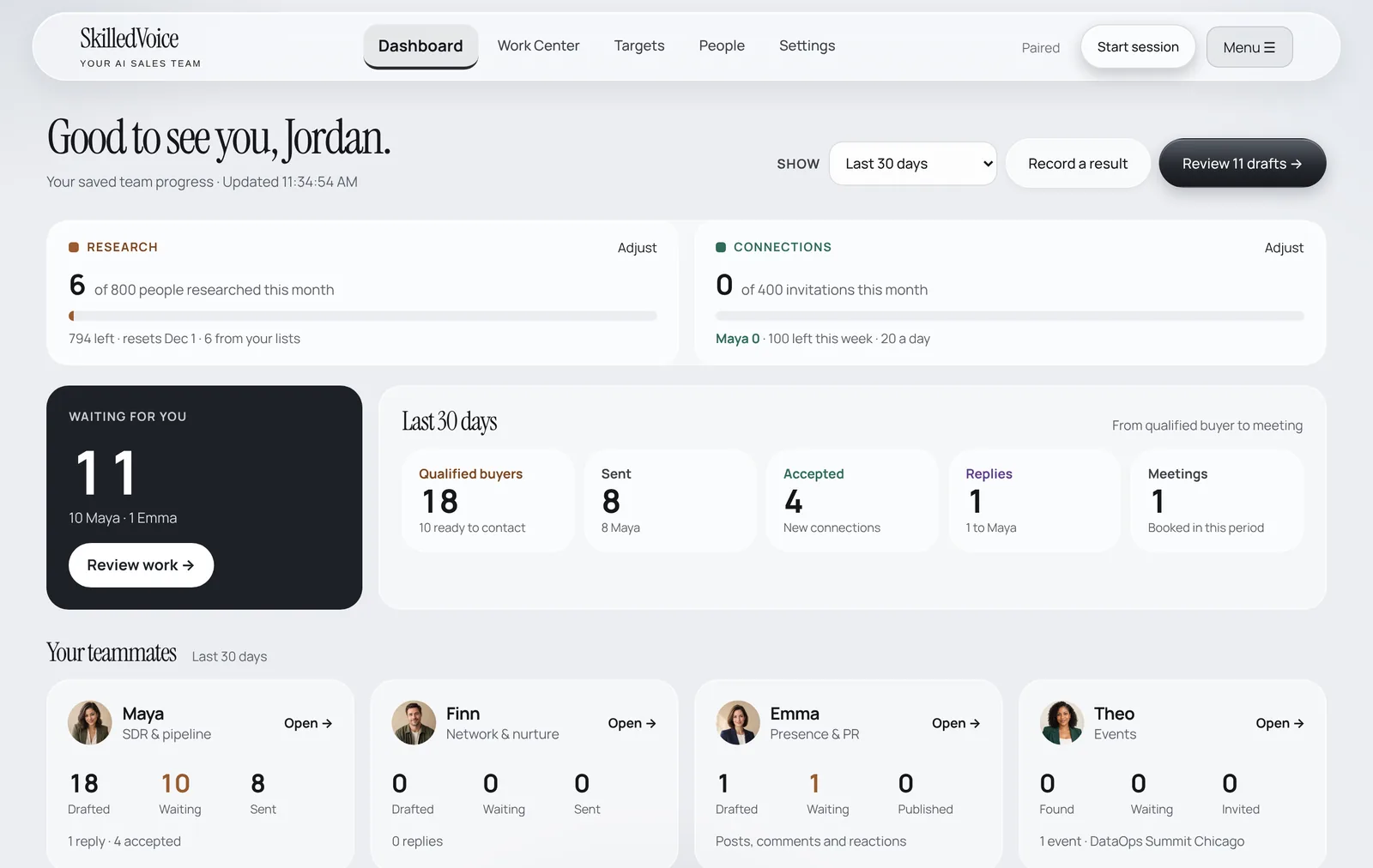
Setup takes about ten minutes and has four short steps. You can skip anything optional and come back to it later; nothing is sent to anyone while you set up.
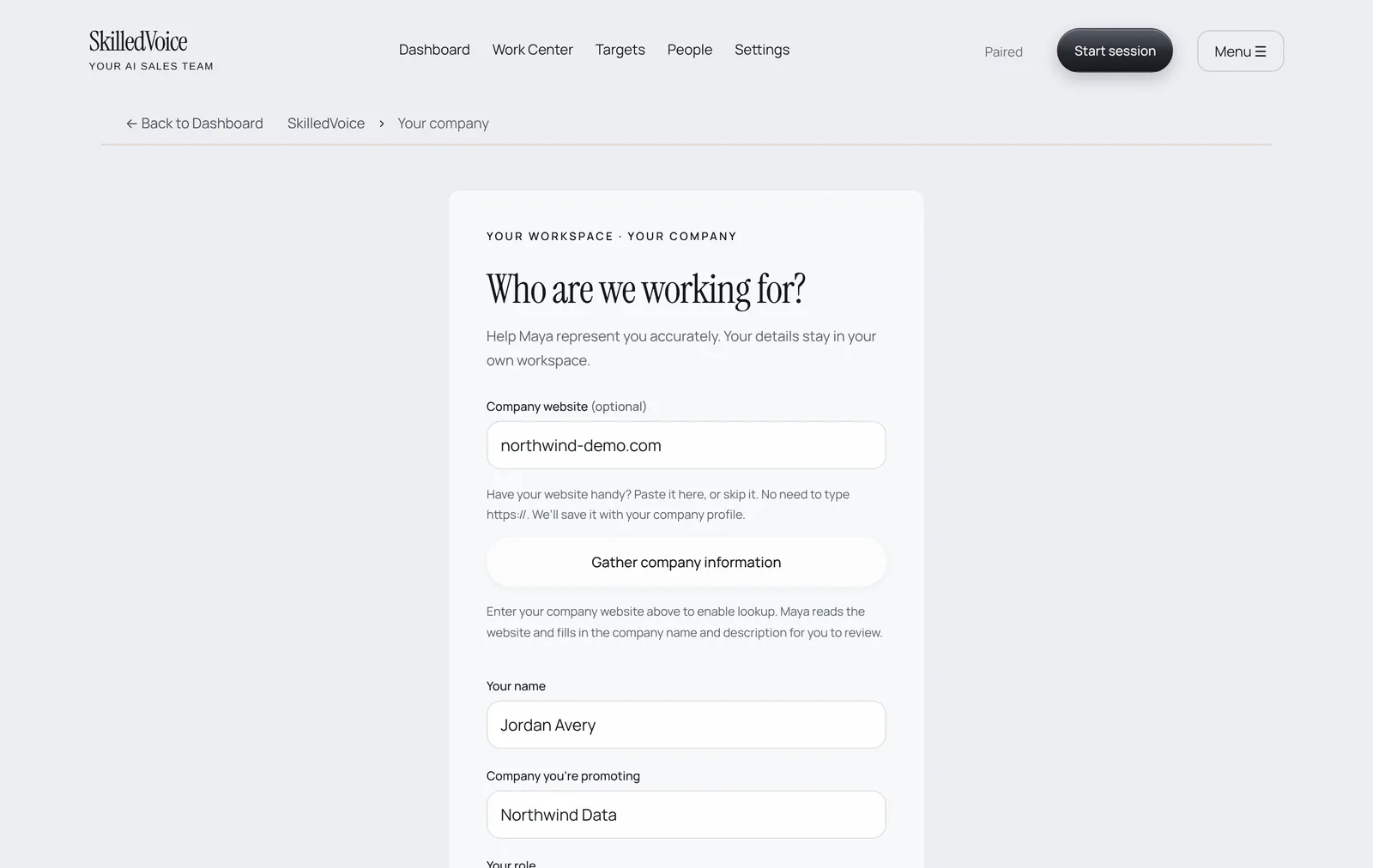
1. Tell Maya who she works for
After you confirm your email, SkilledVoice opens Your company. This is what Maya uses to introduce you, so it is worth two careful minutes.
- Paste your company website and click Gather company information. Maya reads the site and fills in the company name and description for you to check.
- Check Your name, Company you’re promoting and Your role. Use the title you want prospects to see (for example the one on your LinkedIn profile).
- Describe what you sell in plain words, the way you would say it on a call. Short and specific beats long and polished.
- Click Save to continue.
2. Choose who you sell to
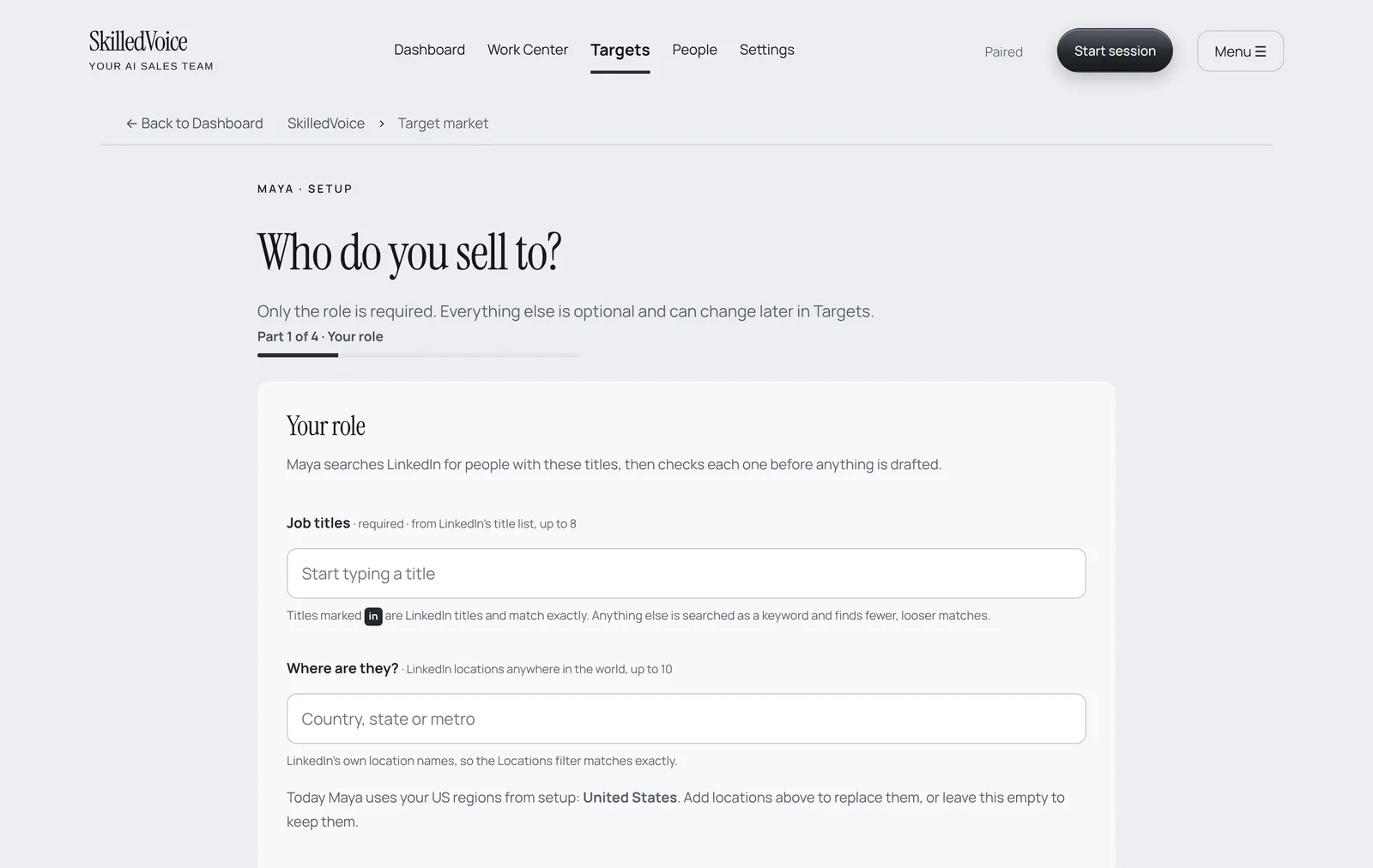
Next is Who do you sell to? Only the role is required. Everything else narrows the search and can change any time in Targets.
- Under Job titles, start typing and pick titles from LinkedIn’s own list (up to 8). Titles marked in are LinkedIn titles and match exactly; anything else is searched as a keyword.
- Under Where are they?, add LinkedIn locations (countries, states or metro areas).
- Optionally add industries, company size and named accounts you already want to win.
- Continue. Maya can suggest companies that fit right away with Find companies.
3. Connect LinkedIn (your browser)
Maya does her LinkedIn work inside your own Chrome or Edge, signed in as you, through the free SkilledVoice Companion extension. The full walkthrough with pictures is in Install the browser companion. You can also skip this for now: account research works without LinkedIn.
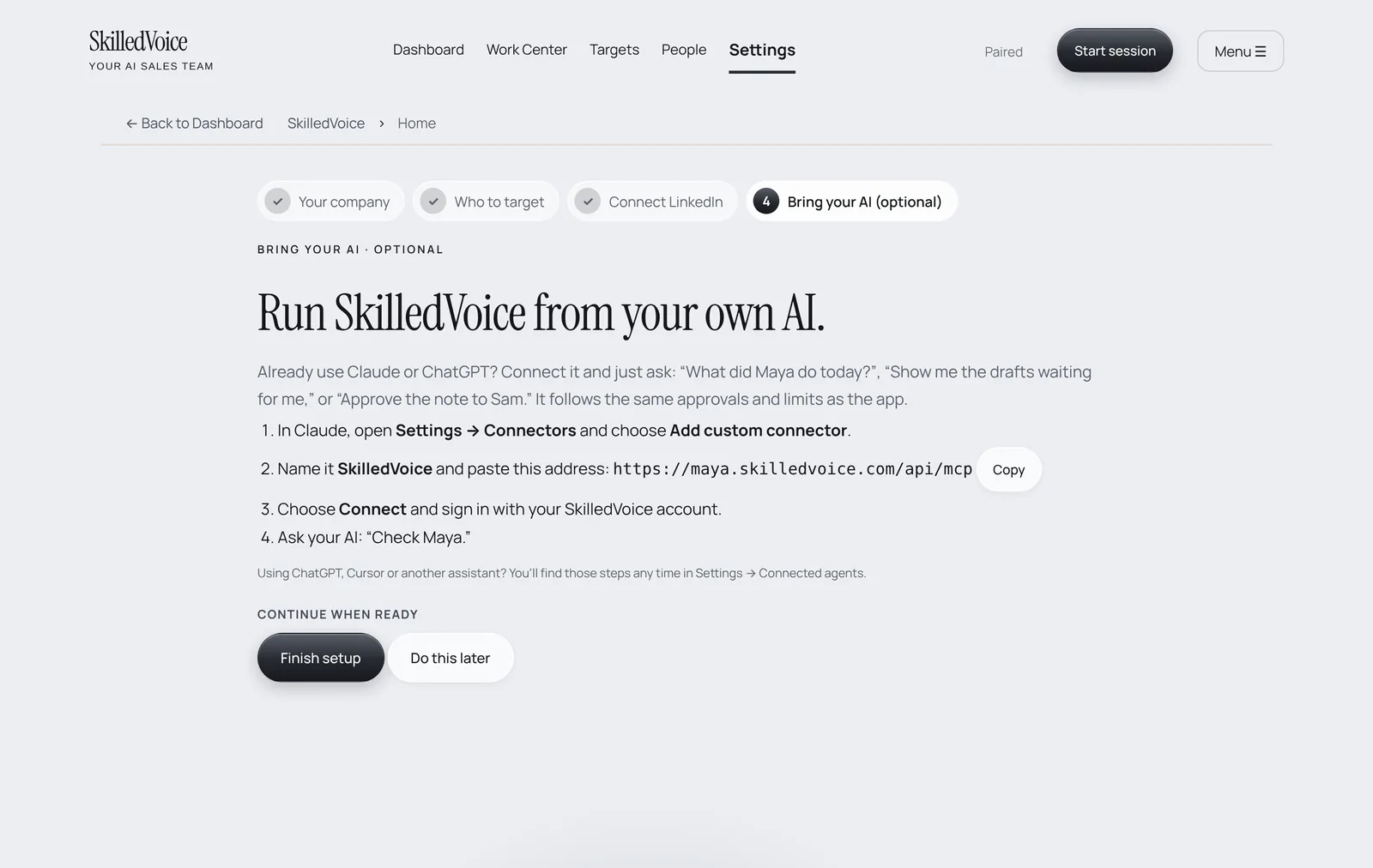
4. Bring your AI (optional, recommended)
The last step lets you connect Claude (or another assistant) so you can run SkilledVoice by just asking. It is optional, but it is the single biggest time saver in the product.
What happens next
Your Dashboard shows a “Next step” card until setup is complete. From here the usual first week is: add a few target accounts, pair your browser, start your first session, and review Maya’s first drafts in the Work Center.