SkilledVoice is built to be run from your own AI. Connect Claude (or ChatGPT, or another assistant that supports connectors) and do in one sentence what takes ten clicks in the app. Your AI works with the same approvals and limits as you, sees only your workspace, and never handles your passwords.
Connect Claude (2 minutes)
- In Claude, open Settings → Connectors. Find SkilledVoice in the directory, or choose Add custom connector and paste
https://maya.skilledvoice.com/api/mcp. - Choose Connect. A SkilledVoice page opens; sign in with your SkilledVoice account.
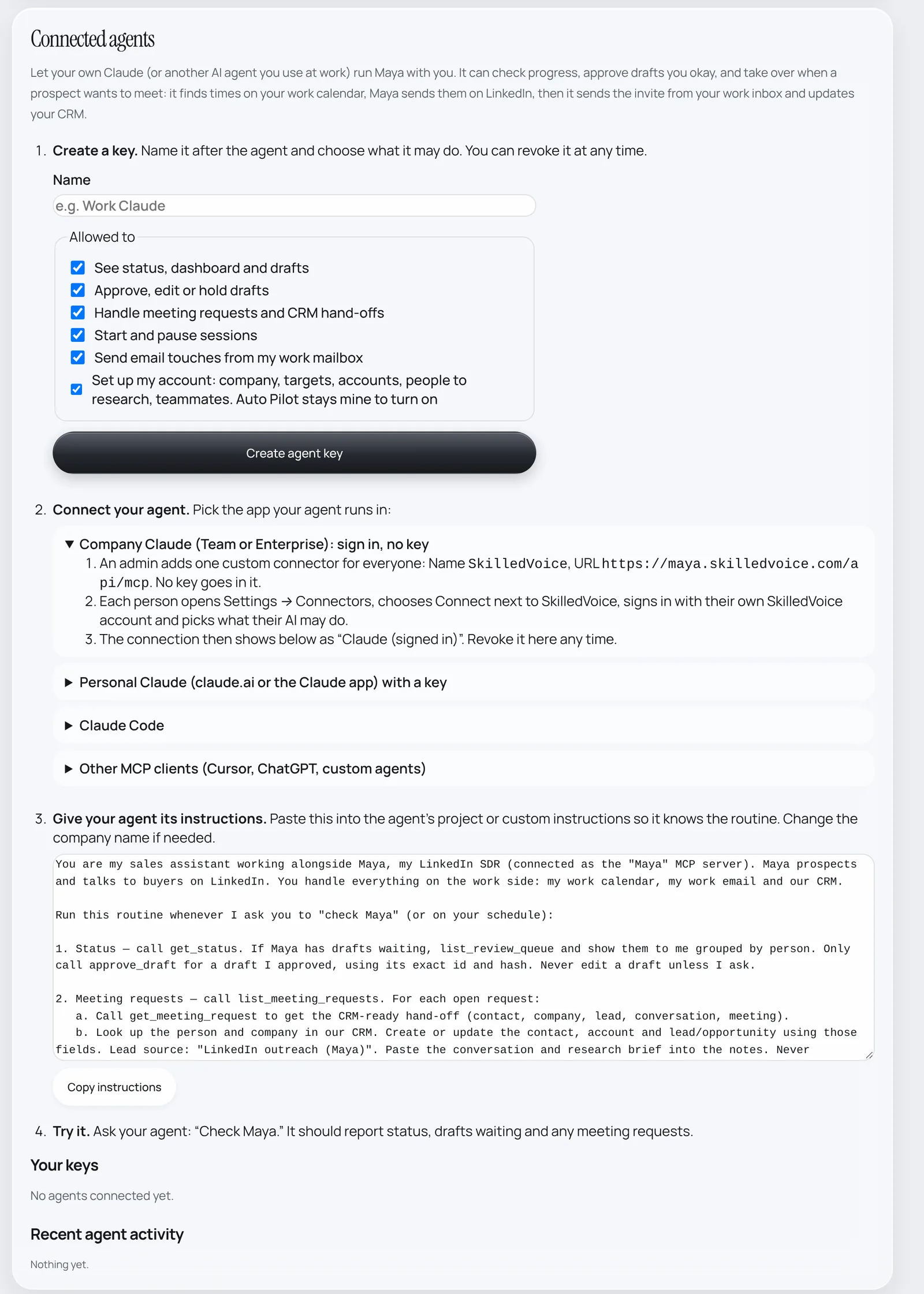
- Tick what your AI may do (see, review, meetings, run sessions, email, setup) and choose Allow and go back.
- Ask Claude: “Give me my SkilledVoice briefing.”
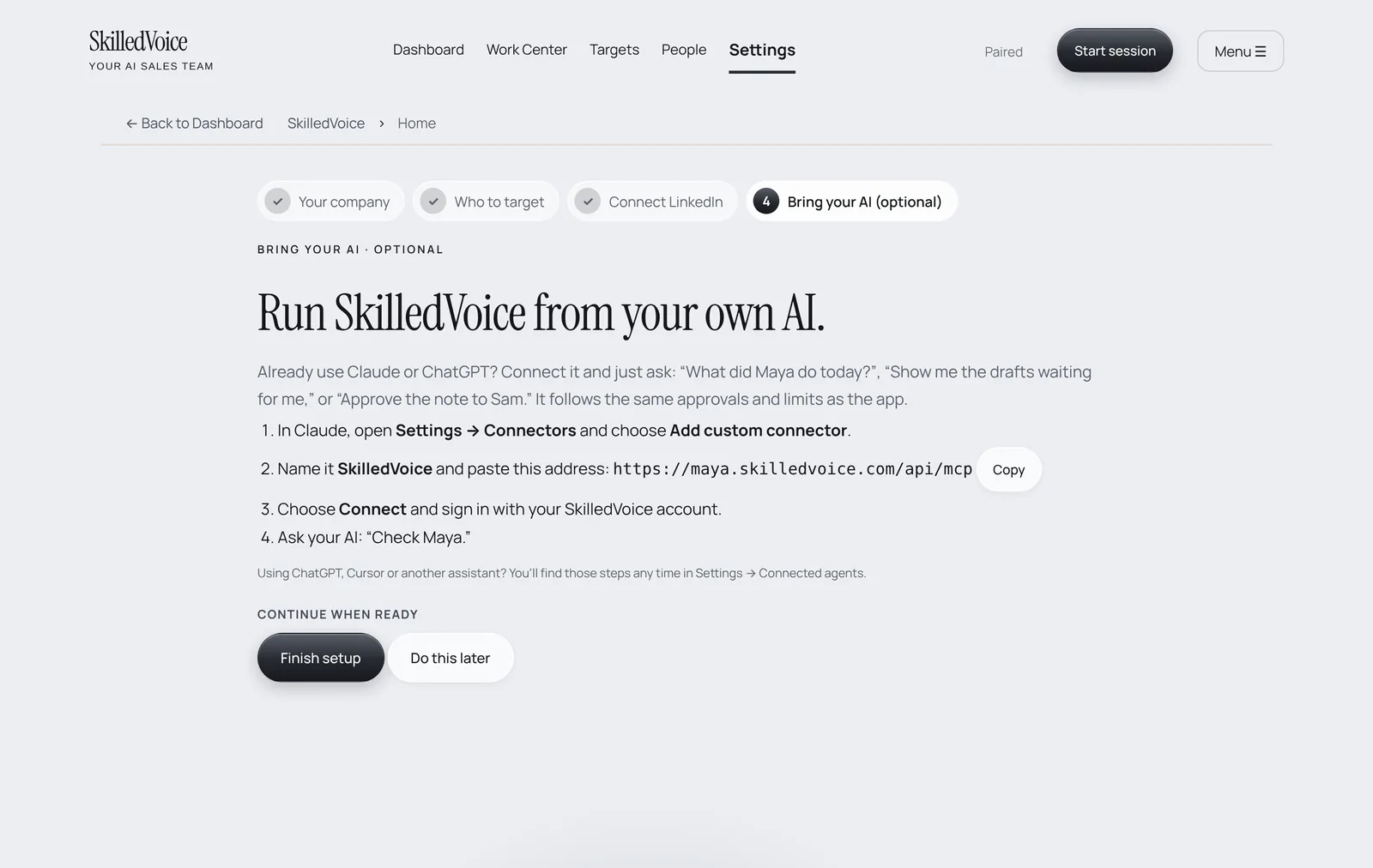
On Claude Team or Enterprise, an admin adds the connector once for the whole company; each person then clicks Connect and signs in with their own SkilledVoice account.
Run Maya on a schedule (our #1 tip)
The founder’s setup
- A PC that stays on. Pair SkilledVoice on a desktop that is always plugged in. In Windows set Put my device to sleep after to Never and the screen saver to None (steps). Mark it as your main computer.
- Leave two tabs open in that browser: SkilledVoice and LinkedIn.
- Have Claude start Maya every morning at 9:00 AM and tell you when replies come in.
Paste this into Claude and ask it to run it on a schedule (if your Claude app offers scheduled tasks, Claude can set it up for you; just ask):
Every weekday at 9:00 AM:
1. Start a Maya session in SkilledVoice (start_session). About a minute later,
   check get_status and confirm the run started. If it didn't, tell me why
   and how to fix it.
2. Give me my SkilledVoice briefing: new replies first, each with a suggested
   answer in my voice, then drafts waiting for my approval and anything stuck.
3. Notify me as soon as anyone replies, with the reply and a suggested answer.
   Don't approve or send anything unless I say so.
Add a second check in the afternoon if you like:
Every weekday at 3:00 PM: check SkilledVoice for new replies and meeting
requests. Tell me about each one with a suggested answer, and propose
meeting times from my work calendar for anyone who wants to meet.
Things to ask
Every day
- “Give me my SkilledVoice briefing.”
- “Any new replies? Draft an answer for each.”
- “Show me the drafts waiting and summarize them by person.”
- “Approve the notes that scored 90 or more.”
Meetings
- “Who agreed to meet? Propose three times from my calendar.”
- “Record the chosen time and send the invite from my work email.”
- “Add this meeting to HubSpot.”
Targets and lists
- “Research these 20 companies and add them as target accounts.”
- “Add a role for analytics leaders in Texas.”
- “Import this spreadsheet as a campaign.”
Control
- “Start a Maya session.” / “Pause Maya.”
- “Turn off Auto Pilot until Monday.”
- “Something looks wrong with Maya; report it.”
What your AI can and can’t do
- Review mode by default. Nothing goes out on LinkedIn until it is approved. Only you can switch a channel to Auto Pilot, in the app; your AI can switch it off but never on, and can lower risk limits but never raise them.
- Your account only. Every request runs as you, so your AI cannot see anyone else’s workspace.
- No passwords. Your AI never sees your SkilledVoice or LinkedIn password.
- Everything is logged in Settings → Connected agents, and you can revoke access there at any time.
The full list of tools is on the AI assistant connector page.