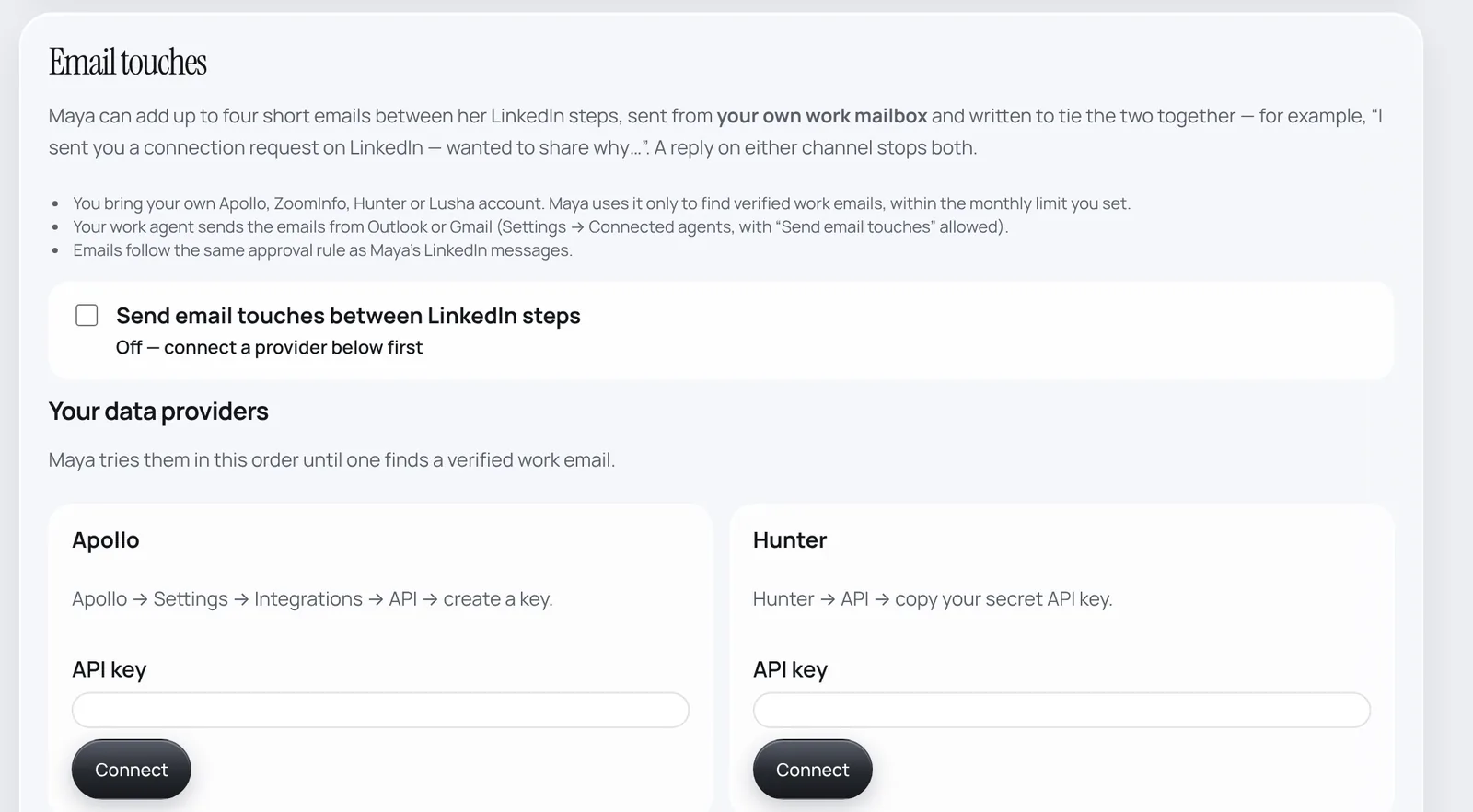
A campaign is just a list of people you want to reach, with optional instructions for Maya. Campaigns are rolling: LinkedIn allows only so many invitations a day, so each week a campaign starts its set number of people.
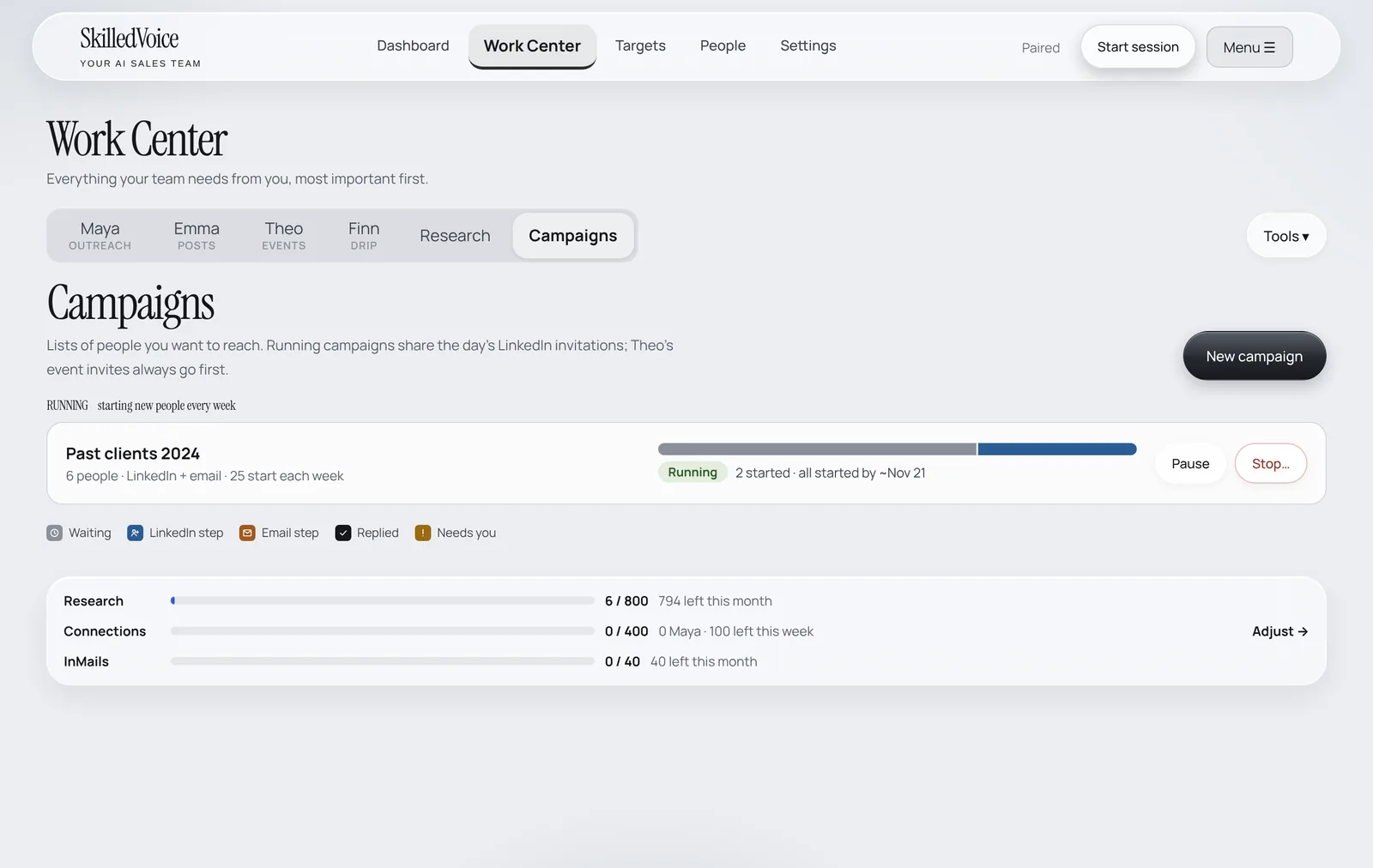
Create a campaign
- Open Work Center → Campaigns and click New campaign.
- Name it and tell Maya anything she should know about these people, for example “These are past clients of our company. Say we would love to work with them again.” Maya never claims past work together unless you say so here or in the list.
- Click Create draft, then import the people (a spreadsheet, a CRM export or a pasted list). Nothing starts until you press Start or schedule it.
- Use Pause and Stop on the campaign row whenever you need to.
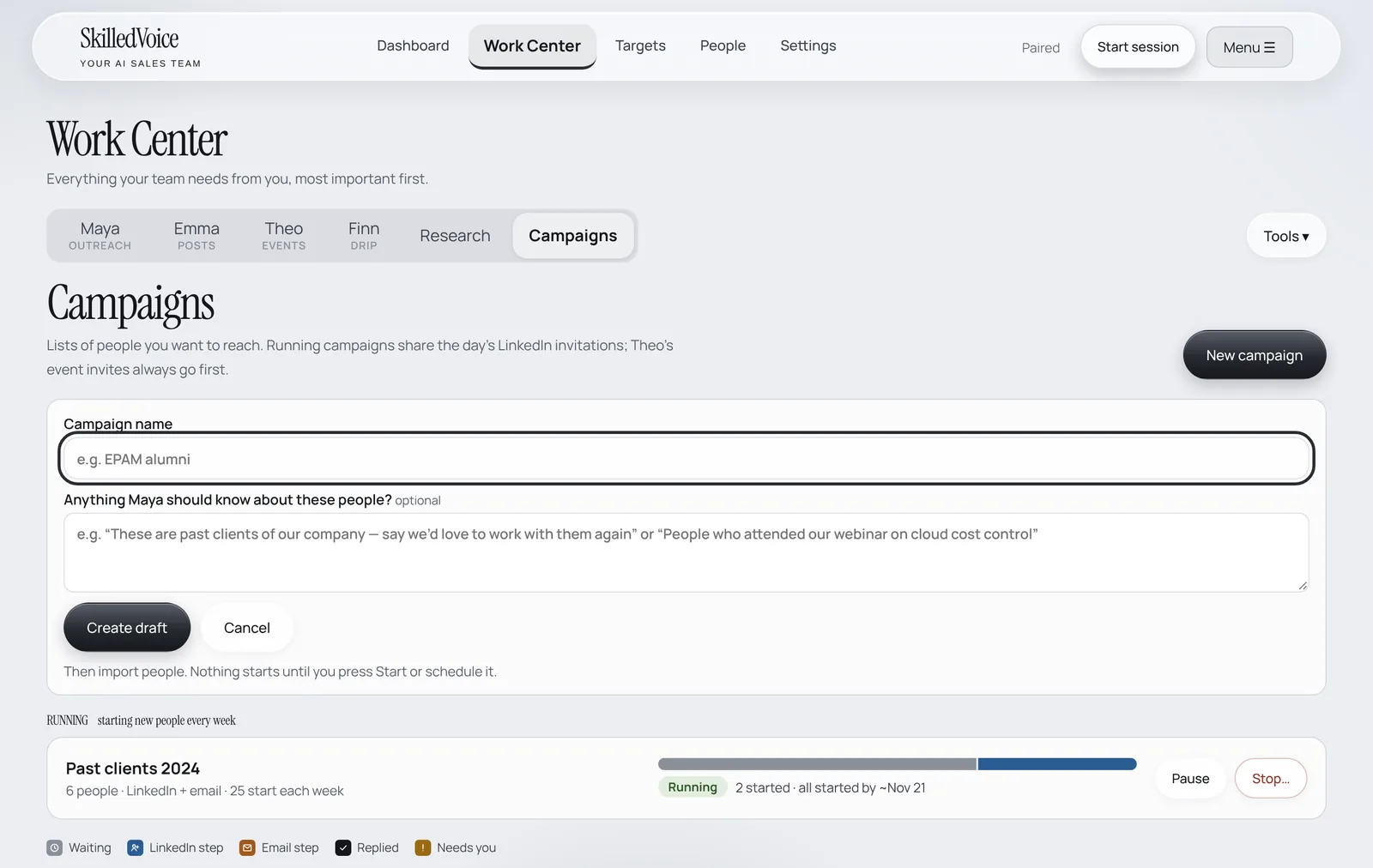
Research people you already have
The Research tab takes almost any list: drop a CSV or Excel file (any columns: name, company, email or LinkedIn link) or paste one person per line. Choose Research them now or Import only and pick later.
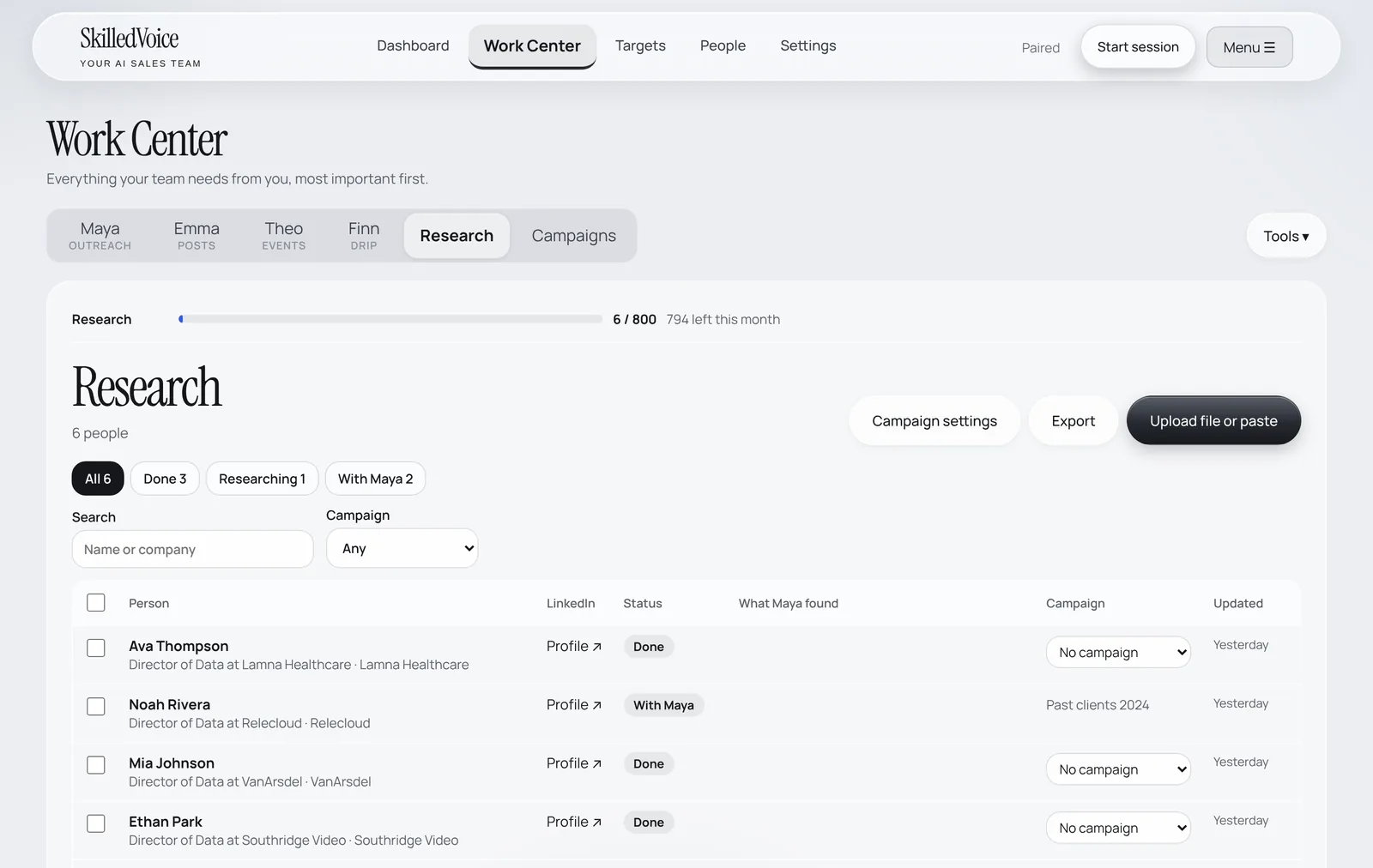
Email touches
Campaigns can mix LinkedIn and email. For each person: Emma engages with one of their recent posts, Maya sends the connection request a day or two later, and a short email follows from your own work mailbox, written to tie the two together. A reply on either channel stops both.
- In Settings → Email touches, connect the email-finding service you already use (Apollo, ZoomInfo, Hunter or Lusha). Maya uses it only to find verified work emails, within the monthly limit you set.
- Switch on Send email touches between LinkedIn steps.
- Decide how emails leave: your AI puts them in your mailbox as drafts for you to send, or sends them once you approve them.